Hey there, fellow WordPress warrior! If you’re knee-deep in building or tweaking your site, you’ve probably hit that nagging question: Should I create a child theme? I’ve been running my own WordPress sites for years—everything from a cozy blog to a bustling e-commerce store—and let me tell you, it’s a debate that trips up even seasoned folks. One minute you’re excited about customizing your header, the next you’re sweating bullets because a theme update wiped out all your hard work.
As a site owner who’s stared down countless updates (and the occasional disaster), I’m here to cut through the noise. In this no-fluff guide, we’ll break down WordPress child themes from the ground up: what they are, when they’re a lifesaver, and when they’re just extra baggage. By the end, you’ll know exactly if creating a child theme is right for your setup. Spoiler: It’s not always a must-do, but ignoring it can cost you big time.
If you’re googling “WordPress child theme tutorial” or “when to use a child theme,” stick around—this is your roadmap to smarter site management.
What Exactly Is a WordPress Child Themes? Let’s Keep It Simple
Before we dive into the “yes or no” debate, let’s level-set. A child theme isn’t some fancy developer trick—it’s basically a safety net for your customizations.
The Basics of Child Themes in WordPress
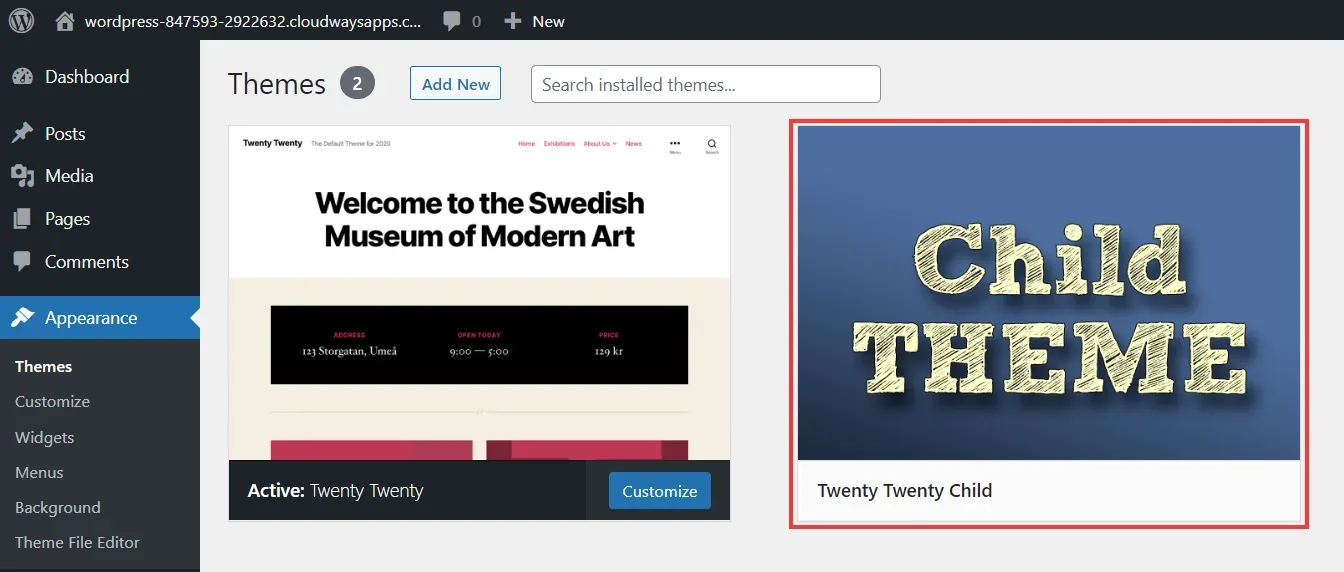
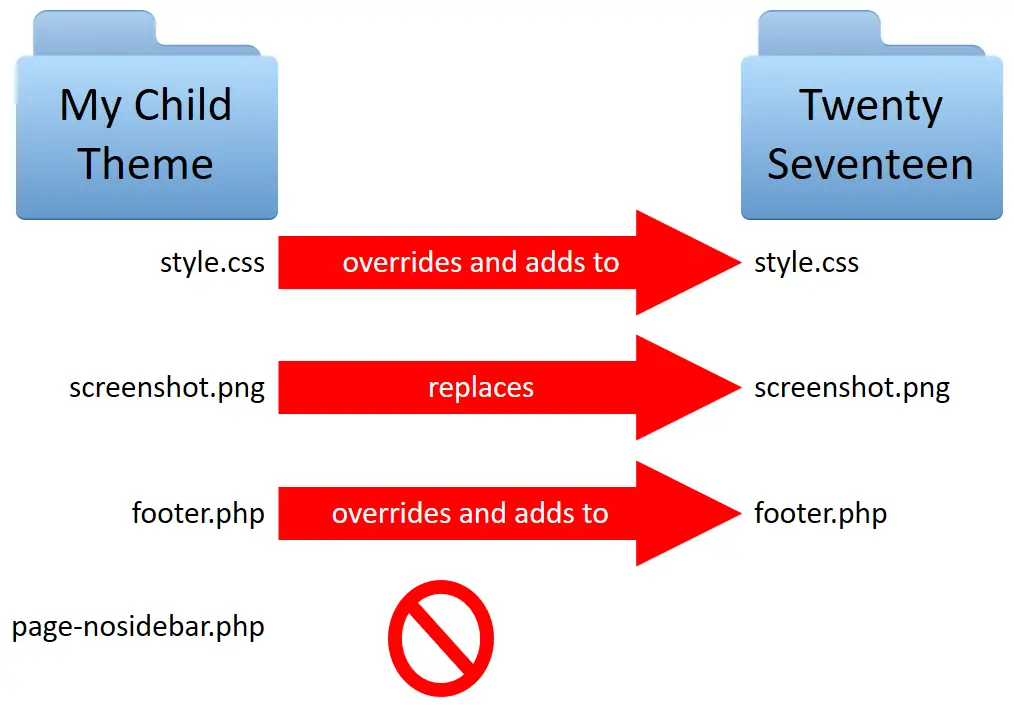
A WordPress child theme is a lightweight theme that piggybacks off a “parent” theme. It can’t run solo; instead, it borrows all the parent’s templates, styles, and features, then lets you tweak what you want without messing up the original.
Key perks:
- Full Inheritance: Grabs everything from the parent (stylesheets, PHP files, the works).
- Smart Overrides: Drop in a file with the same name (like header.php), and WordPress uses your version first.
- Update-Proof: Parent theme updates? Your changes stay safe and sound.
WordPress loads it like this: Parent first, then child on top. Boom—customization without chaos. The WordPress Codex has been preaching this since version 3.0, and for good reason.
The One Big Reason Child Themes Rock: Protecting Your Tweaks from Updates
Look, wordpress child themes aren’t about looking pro—they’re about survival. Their core job? Shield your mods from theme updates that could nuke them.
Picture this: You spend an afternoon jazzing up your footer. Update hits. Poof—gone. Sound familiar? If your changes live in theme files, yeah, you’re at risk.
Quick gut-check question: Will my edits vanish on update?
- Yes? Time for a child theme (or a solid alternative).
- No? You’re golden without one.
Child themes are the go-to fix, but they’re not the only game in town. More on that later.
4 Scenarios Where You Should Create a Child Theme (Trust Me on This)
I’ve learned the hard way: Skip a child theme in these spots, and regret follows. If your site’s heading long-term or pro-level, here’s when to roll one up.
1. You’re Messing with Core Template Files (Those PHP Gems)
PHP templates are the heart of your theme. Touch ’em directly? You’re playing with fire.
Common culprits:
- Tweaking header.php or footer.php for custom navs or footers.
- Overhauling single post layouts in single.php for better SEO flow.
- Fine-tuning pages with page.php or archives via archive.php.
- Nudging HTML for design wins or schema markup.
Direct parent edits = Update doom. Child theme fix: Copy the file to your child folder, edit away. WordPress picks yours every time.
Quick How-To:
- Spot the file in your parent theme (e.g.,
/wp-content/themes/parent/header.php). - Copy it to
/wp-content/themes/child/. - Tweak and test—easy peasy.
Pro tip: Tools like the Child Theme Configurator plugin make setup a breeze.
2. Customizing Theme-Specific PHP Functions
Got a function tweak that’s glued to your theme? Child theme’s functions.php is your spot.
Examples:
- Hooking into theme actions to ditch unwanted widgets.
- WooCommerce overrides for cart quirks.
- Adding logic to theme queries or loops.
Golden Rule: Does it rely on the parent theme?
| Function Type | Best Spot | Why? |
|---|---|---|
| Theme Layout Stuff (e.g., sidebar hooks) | Child functions.php | Tied to this theme—won’t survive a switch |
| Business Logic (e.g., user logins) | Standalone Plugin | Lives on, no matter the theme |
| Shortcodes or Custom Post Types | Plugin | Keeps your content portable |
| Quick Tests | Child or Plugin | Depends on your vibe |
Don’t cram everything here—keep it lean.
3. You’re Diving Deep into Styles (CSS Overhaul Time)
For one-off color swaps? Nah. But big style projects? Child theme FTW.
When to pull the trigger:
- Mountains of custom CSS for branding or responsiveness.
- Layout shifts with Flexbox or Grid.
- Team collabs or build tools like SCSS.
Head-to-Head: Additional CSS vs. Child Theme
| Factor | Additional CSS (Customizer) | Child Theme CSS |
|---|---|---|
| Edit Volume | Light (under 50 lines) | Heavy (hundreds+) |
| File Splitting | Nope | Yup (import away) |
| Maintenance | Super low | Moderate (but scalable) |
| Team-Friendly | Meh | Yes (Git-ready) |
Rule of thumb: Tiny fixes? Customizer. Epic builds? Child theme.
4. Your Site’s Built for the Long Haul (Business or Evergreen Content)
Enterprise sites, Woo shops, or SEO machines? WordPress child themes are non-negotiable for me.
Why? Safe updates mean you snag security patches without rework. Stack it with plugins (ACF for fields, Yoast for SEO), and you’ve got a rock-solid setup.
My go-to stack:
- Parent: Clean base like Astra.
- Child: Your tweaks.
- Plugins: The heavy lifters.
4 Times You Can Totally Skip the WordPress Child Themes Hassle
Not every site’s a rocket ship. These scenarios? Keep it simple—no child needed.
1. Sticking to Built-In Theme or WP Settings
Love the Customizer or theme panels? Go wild.
- Colors, fonts, layouts—all database-stored, update-safe.
2. Just a Handful of CSS Tweaks
Button hue off? Font too small? Hit “Additional CSS” in the Customizer. Instant wins, zero folders.
Threshold: 20 lines or less? You’re good.
3. Building Mostly with Page Builders
Gutenberg, Elementor, Bricks ruling your pages? Editors handle 90%—no template dives required.
4. It’s a Quick Test or Side Project
Sandbox site or learning lab? Hack the parent. Updates? Rebuild and move on.
Tailored Advice: Child Themes by User Type
From my site-running days, here’s the real talk breakdown:
| User Type | Create One? | Quick Take |
|---|---|---|
| Newbie | If Needed (Skip at Start) | Customizer first—build confidence |
| Blogger/Content Creator | Yep | SEO tweaks and post layouts demand it |
| Business/Commercial Site | Absolutely | Updates are frequent; safety first |
| Developer/Freelancer | Standard Move | It’s in your toolkit—own it |
Your 5-Step Cheat Sheet: Need a Child Theme? Decide in Minutes
No overthinking—run this:
- Settings or Light CSS Only? Skip it (Customizer rules).
- Template or Structure Changes? Yes—protect those files.
- Features That Stick Around Theme Switches? Plugin ’em up.
- On the Fence? Whip one up—it’s free and fast (try a generator plugin).
- Tested? Launch! Backup your child files religiously.
Wrapping Up: Child Themes Aren’t a Chore—They’re Your Site’s Best Friend
Bottom line from one site owner to another: A WordPress child theme is less “must-have” and more “smart insurance.” In a world of endless updates, it saves headaches and keeps your vision intact. Start with lightweight parents like GeneratePress—they play nice with kids.
Got a child theme conundrum? Drop a comment—I’ve got your back. Share this if it clicked, and subscribe for more WP wisdom on themes, SEO, and beyond.
Related Reads: Understanding WordPress Themes and Appearance