In the world of Media Buying, data is gold, and your tracker is your eyes. Binom has long been recognized as the “King of Self-Hosted Trackers” thanks to its insane processing efficiency and powerful customization features.
This article will walk you through how to deploy this “king” on a VPS and provide a low-cost startup plan perfect for beginners.
Why Choose Binom?
Unlike cloud-based trackers (like RedTrack or Voluum), Binom is a self-hosted tracker. You’ll need to set up your own server to install it, but that comes with some massive perks that cloud trackers just can’t match:
First, you have total control over your data. Cloud platforms usually only keep your data for a few months, but with Binom, everything is stored on your own server. You can keep it forever, making it easy to analyze and look back on later.
Second, there are no limits on events. No matter how much traffic you’re pushing, as long as your server can handle it, Binom won’t cap your events or charge you extra fees like some cloud tools do. It’s perfect for scaling up down the road.
Lastly, the value for money: while there are upfront server costs, for high-volume players, it ends up being way cheaper in the long run than paying per click on a cloud tracker.
Server Configuration & Environment Requirements
Binom is currently pushing Version V2, which has a majorly optimized architecture (using a ClickHouse database) to handle higher concurrency and bigger traffic. Version 1 (V1) is already very mature, has fewer bugs, and is rock-stable, though the dev team isn’t really adding new features to it anymore.
- V1 Minimum Specs: 1-core CPU, 2GB RAM, SSD. Recommended OS is Ubuntu 22.04.
- V2 Recommended Specs: At least 2-core CPU, 4GB RAM, 50GB+ SSD (you’ll need more as your traffic grows).
- Environment Tip: The official recommendation is a “clean” environment (meaning the server only runs the tracker) to avoid any software conflicts.
For those just starting out in Media Buying, I recommend sticking with V1.
How to Install Binom (Super Easy, Just Two Commands)
Installing Binom on a fresh VPS is very user-friendly—the whole process only takes about ten minutes.
Preparation:
- Buy a VPS that meets the specs (Ubuntu 22.04 clean install recommended).
- Point your domain (A Record) to your server’s IP.
Installation Steps:
1. Press Win + X and choose Terminal (Admin) or PowerShell to log in via SSH (using a tool like PuTTY is also recommended).
2. Run the following command to download the install script:
wget http://data.binom.org/binom_install.sh -O /root/binom_install.sh
3. Run the installer:
bash /root/binom_install.sh install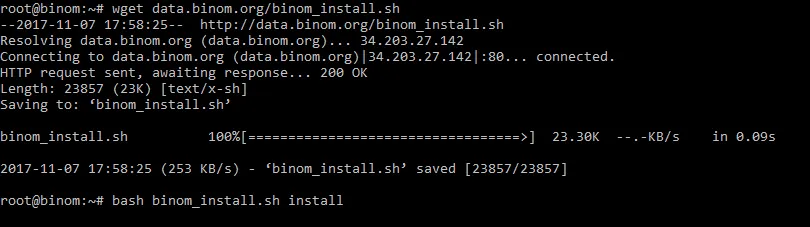
During the installation, the system will prompt you for a few things:
- Enter your tracker domain (used for logging into the panel and generating campaign links). If your domain is pointed correctly, the script will auto-configure an SSL certificate (HTTPS). If not, you’re stuck with HTTP.
- If you don’t have a domain yet, you can just use the server’s IP address.
- Enter a valid email address.
- Select your timezone.

Save Your Login Info
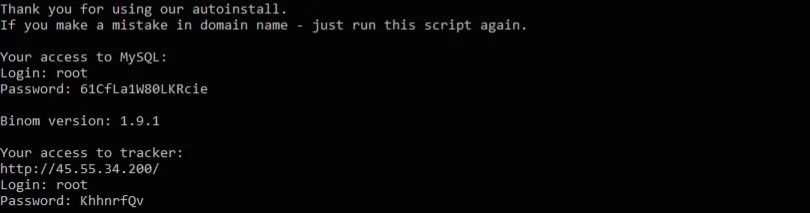
Once the install finishes, your login details (username, password, etc.) will pop up on the screen. These are only generated during installation, so if you lose them, they’re gone for good. Database info might not always show up.
Binom Advanced Config & Things to Watch Out For
Binding Multiple Domains
Binom supports multiple domains, allowing you to keep your login domain and your tracking link domains separate. This adds a layer of security and professionalism. Note: When adding extra domains, If the SSL application in the backend fails. You’ll need to do it manually with this command (swap “domainname.com” with your actual domain):
sudo certbot certonly --standalone -d domainname.comCoexisting with aaPanel
The official team strongly suggests a clean install—meaning the server only hosts the tracker. I recommend using Cloudflare for your landing pages or hosting them on a separate server so they don’t eat up the tracker’s resources. This ensures your data stays accurate and your redirects stay fast.
Even though a clean install is the “right” way, if you absolutely need to host landing pages on the same server, you can install aaPanel first and then set Binom up as a site within it. This lets you do a “tracker + lander” combo to save on server costs.
Low-Cost Startup Plan
For newcomers just getting into Media Buying, Binom’s monthly license fee of about $104 can be a bit steep—especially before you’ve found a profitable model or a “killer” offer. Paying hundreds of dollars in fixed costs every month doesn’t make much sense starting out.
Here’s a high-value entry-level setup I suggest for newbies:
- Pick a 3-core CPU, 4GB RAM VPS (costs about $30 a year).
- Pair it with a Binom Learning/Kickstart Version. You won’t have to keep reapplying for trials every month, and you can keep your total cost for the first year under $150.
- Focus on running the full process first, validating your offers and traffic profitability, and then think about upgrading to a paid license.
Use a low-cost approach to get your workflow down. Once you’re making steady profit, that’s the time to upgrade to the official license and beefier servers. The heart of Media Buying is ROI—cost control should start on day one.