If you’ve just launched a WordPress website, one of the first settings worth configuring is your permalink structure. Permalinks are simply the permanent URLs used for your posts and pages, but they play a much bigger role than most beginners expect.
A clean URL helps visitors understand what a page is about before they even click it, and it also gives search engines clearer signals about your content. Setting this correctly at the beginning saves you from SEO issues and broken links later on.
In this guide, we’ll walk through how WordPress permalinks work, which structure beginners should choose, whether adding “.html” makes sense, and how to fix the common 404 error that sometimes appears after changing settings.
Why Permalinks Matter in WordPress
Every page on your website has a unique address, and WordPress generates that address automatically. By default, however, WordPress uses a format that looks like this:
https://example.com/?p=123
Technically it works, but it tells neither readers nor search engines anything useful. A visitor cannot guess the topic of the article, and search engines receive no keyword context from the URL itself.
Readable URLs improve usability because people trust links they can understand. They also support SEO by reinforcing the topic of a page through natural keywords. While permalinks alone won’t guarantee rankings, poorly structured URLs can definitely hold a site back.
Because search engines index URLs permanently, it’s best to choose a structure early and keep it unchanged.
How to Change Permalinks in WordPress
WordPress makes permalink configuration simple. Inside your dashboard, go to Settings → Permalinks, choose a structure, and save the changes. The new format applies immediately to all posts.
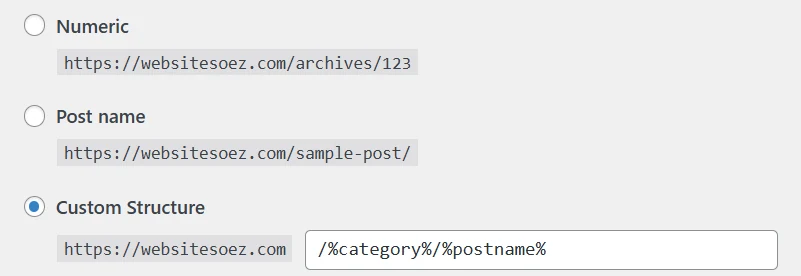
At this stage everything may appear finished, but some users notice that individual posts suddenly return a 404 error. This usually isn’t a WordPress problem — it happens because the server hasn’t refreshed its rewrite rules yet. We’ll return to that shortly.
Before fixing errors, it’s important to understand which structure you should actually select.
Choosing the Right Permalink Structure
WordPress offers several preset formats, and each reflects a different publishing style.
The default “Plain” structure is best avoided. It relies on numeric query strings and offers no readability or SEO value. Although functional, it feels outdated and unprofessional compared with modern web standards.
Date-based structures include the year or month in the URL. These can work well for news sites or journals where publishing time matters, but they often make evergreen tutorials look old even when the information is still accurate.
Many beginners consider numeric URLs because they require no manual editing. A structure like is simple and stable, but it lacks descriptive meaning. Search engines rely more heavily on titles and headings when URLs contain no keywords./2626.html
For most websites, the Post name structure strikes the best balance. It creates short, readable URLs based on the article title, such as:
/best-wordpress-permalink-settings/
This format is widely recommended because it is easy to understand, flexible for future content, and naturally SEO-friendly without additional configuration.
Some users prefer a custom structure that includes categories or file-style endings. These can work well if your site architecture is carefully planned, but they should be chosen only when you are confident the structure will remain stable long term.
Should You Add “.html” to WordPress URLs?
A question that often comes up is whether WordPress URLs should end with “.html”. Older websites frequently used this style because pages were truly static files, and many people still associate it with cleaner or more professional links.
From an SEO perspective, however, there is no meaningful ranking advantage. Search engines treat URLs with or without the same way. What matters is consistency, not the file extension itself..html
Adding can still make sense in certain situations. Some site owners prefer the appearance of static pages, and certain external platforms or integrations handle file-style URLs more predictably. If your previous website already used , keeping the same format may also help maintain continuity..html
On the other hand, omitting the extension keeps things simpler. WordPress was designed around extension-free URLs, and avoiding unnecessary elements reduces the chance of future redirects if you ever migrate platforms.
For most beginners, either of these structures works well:
/%postname%/
or
/%postname%.html
The key is choosing one early and sticking with it.
Editing Slugs for Better SEO
Once you use the Post name structure, WordPress generates URLs automatically from your titles. It’s still worth reviewing the slug before publishing.
Short, descriptive phrases work best. Using lowercase words separated by hyphens keeps URLs readable and avoids encoding issues. Extremely long titles often produce messy links, so trimming them to the core keyword usually improves clarity.
Think of the URL as a concise summary of the article rather than a full sentence.
Why 404 Errors Appear After Changing Permalinks
After saving permalink settings, some sites display a working homepage but broken post links. This happens because WordPress relies on rewrite rules that must also be supported by the web server.
When the server configuration hasn’t refreshed yet, it cannot translate friendly URLs into the correct internal request, resulting in a 404 error even though the content exists.
In many cases, simply saving the permalink settings again solves the issue because WordPress regenerates its rules automatically. If the error persists, the server needs rewrite support enabled.
Fixing the 404 Error After Changing Permalinks
Sometimes after saving your new permalink settings, everything appears normal at first. The homepage loads correctly, the WordPress dashboard works, but opening any individual post results in a “404 Page Not Found” error.
This usually happens because WordPress relies on something called rewrite rules (often referred to as “pretty permalinks”). While WordPress generates the URLs automatically, your web server must also understand how to route those clean URLs back to index.php. If rewrite rules are not enabled or refreshed, the server simply cannot locate the page.
The solution depends on your hosting environment, but the underlying idea is always the same: enable WordPress rewrite support on the server.
aaPanel (Beginner-Friendly Servers)
If your server uses aaPanel, the fix is usually immediate because rewrite presets are already included.
Log into your aaPanel dashboard and open Websites, then choose your site and enter Settings. Inside the settings panel, locate URL rewrite (sometimes labeled Pseudo-Static). From the dropdown menu, select wordpress and save the configuration.
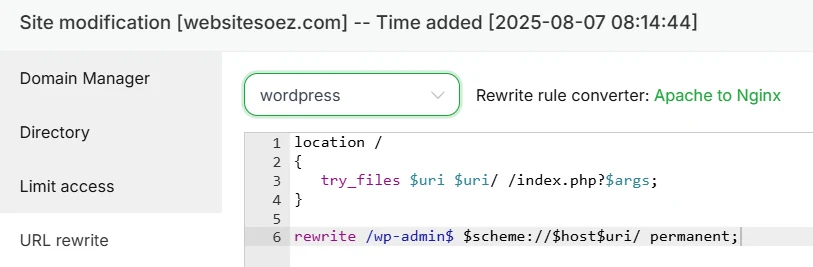
Once saved, the server reloads its rewrite rules automatically, and post links should begin working within seconds.
LNMP One-Click Stack
LNMP environments require rewrite rules to be enabled when the virtual host is created.
When adding a new website through LNMP, make sure the pseudo-static option is enabled (y) and select the WordPress rule. If WordPress is installed inside a subdirectory, use the appropriate rule such as wp2.
If the site already exists and permalinks are failing, you can either recreate the virtual host configuration or manually edit the site’s .conf file and include the WordPress rewrite configuration:
include rewrite/wordpress.conf;
After saving the file, reload Nginx so the new rules take effect.
Self-Managed Nginx Servers
For servers running a manually configured Nginx installation, rewrite rules must be added directly inside the server block configuration.
Open your Nginx site configuration file and ensure the following block exists:
location / {
    try_files $uri $uri/ /index.php?$args;
}rewrite /wp-admin$ $scheme://$host$uri/ permanent;
This rule tells Nginx to pass unknown URLs to WordPress instead of searching for physical files.
After updating the configuration, reload Nginx:
nginx -s reload
Once reloaded, WordPress permalinks should function normally.
WordPress Installed in a Subdirectory (Example: /blog/)
If WordPress is installed inside a folder rather than the domain root, rewrite rules must reflect that directory path.
Replace /blog/ with your actual installation folder:
location /blog/ {
    index index.html index.php;    if (-f $request_filename/index.html) {
        rewrite (.*) $1/index.html break;
    }    if (-f $request_filename/index.php) {
        rewrite (.*) $1/index.php;
    }    if (!-f $request_filename) {
        rewrite (.*) /blog/index.php;
    }
}rewrite /blog/wp-admin$ $scheme://$host$uri/ permanent;
After saving, reload Nginx again to activate the configuration.
On Apache servers, WordPress manages permalinks using a .htaccess file located in your website’s root directory.
Open or create the .htaccess file and ensure it contains the default WordPress rewrite rules:
<IfModule mod_rewrite.c>
RewriteEngine On
RewriteBase /
RewriteRule ^index\.php$ - [L]RewriteCond %{REQUEST_FILENAME} !-f
RewriteCond %{REQUEST_FILENAME} !-d
RewriteRule . /index.php [L]
</IfModule>
Make sure the Apache mod_rewrite module is enabled. After saving the file, clear your browser cache and refresh the page.
A Quick Tip Before Troubleshooting Further
In many cases, simply returning to Settings → Permalinks and clicking Save Changes again forces WordPress to regenerate rewrite rules automatically. It’s a small step, but surprisingly effective and worth trying before editing server configurations.
Permalinks are a small setting that influences how your entire website is structured. Choosing a clean format early helps avoid technical issues later and gives your content a more professional foundation from day one.
For most beginners, the Post name structure remains the safest and most flexible option. Adding is largely a stylistic preference rather than an SEO requirement, so select whichever format you prefer and keep it consistent.
Once rewrite rules are working correctly, your WordPress site will have clear, stable URLs that both readers and search engines can understand easily — and that’s exactly what a good permalink structure is meant to achieve.
Independent Store Traffic: How to Drive Traffic to an Independent Store for Beginners